How to Create a New Routing Guide in FleetWorks
Last updated: May 15, 2026
FleetWorks Routing Guides automate and optimize carrier outreach for your network’s lanes, prioritizing trusted partners for repeat and spot freight.
Carriers are contacted automatically once the loads are available - reducing manual work and missed opportunities.
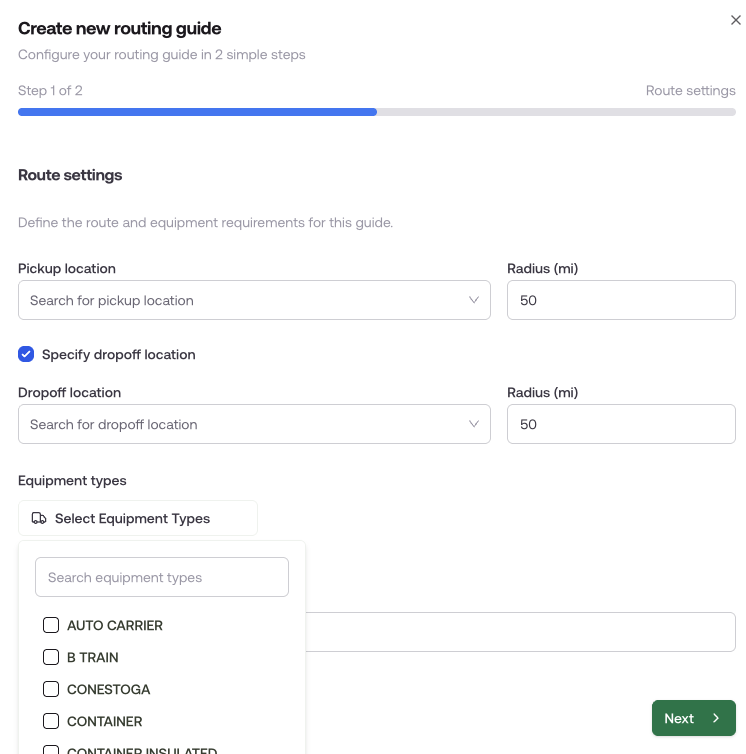
Pickup Location: Enter or search for the city/town where the shipment originates.
Radius: Specify the active radius from pickup in miles.
Destination: Enter or search for dropoff location.
Equipment Type: Select required equipment.
Shipper: (Optional) Designate a shipper.
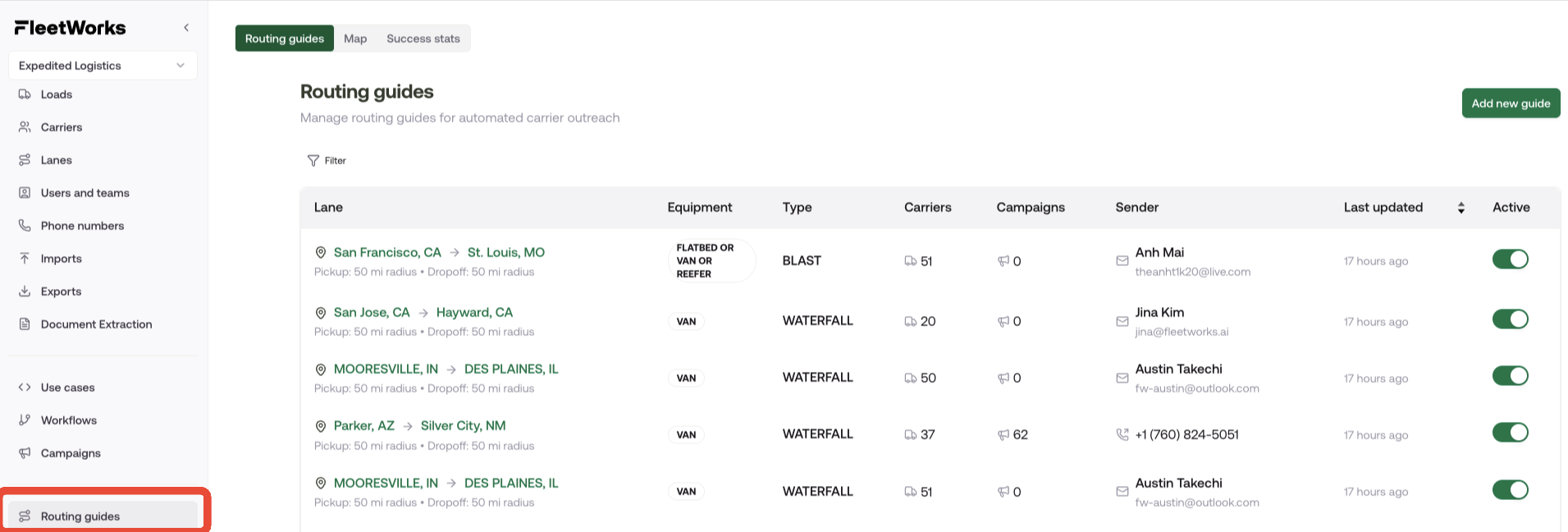
Navigate to https://www.fleetworks.ai/routing-guides
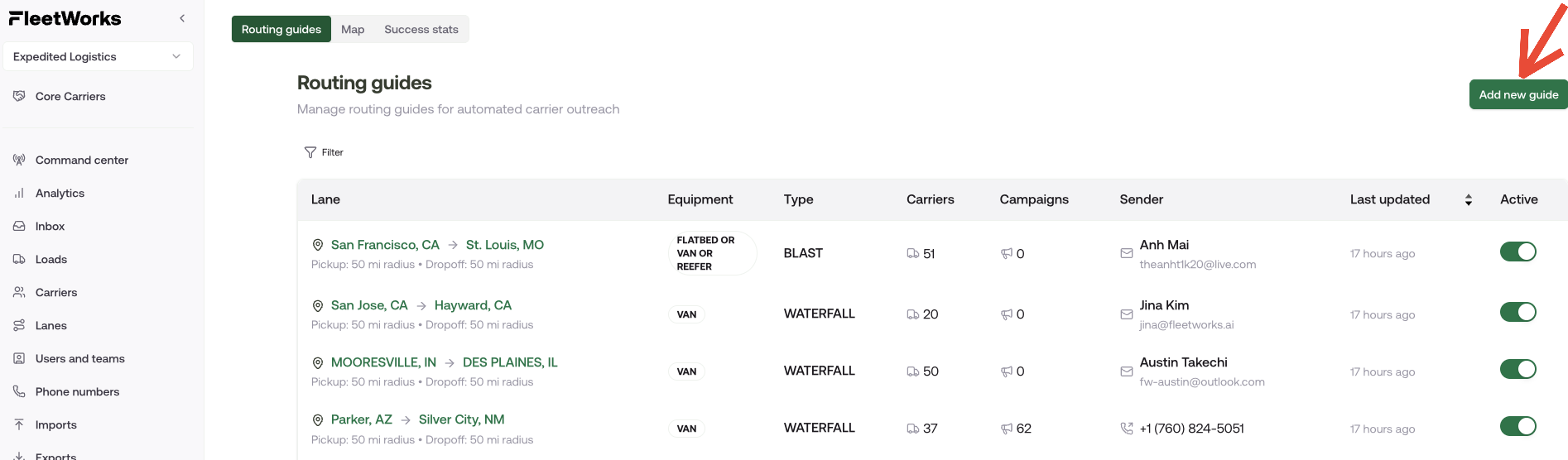
Click Add new guide to begin a new workflow.
Click Pick up, Drop off location and equipment type and start typing or selecting the required equipment.
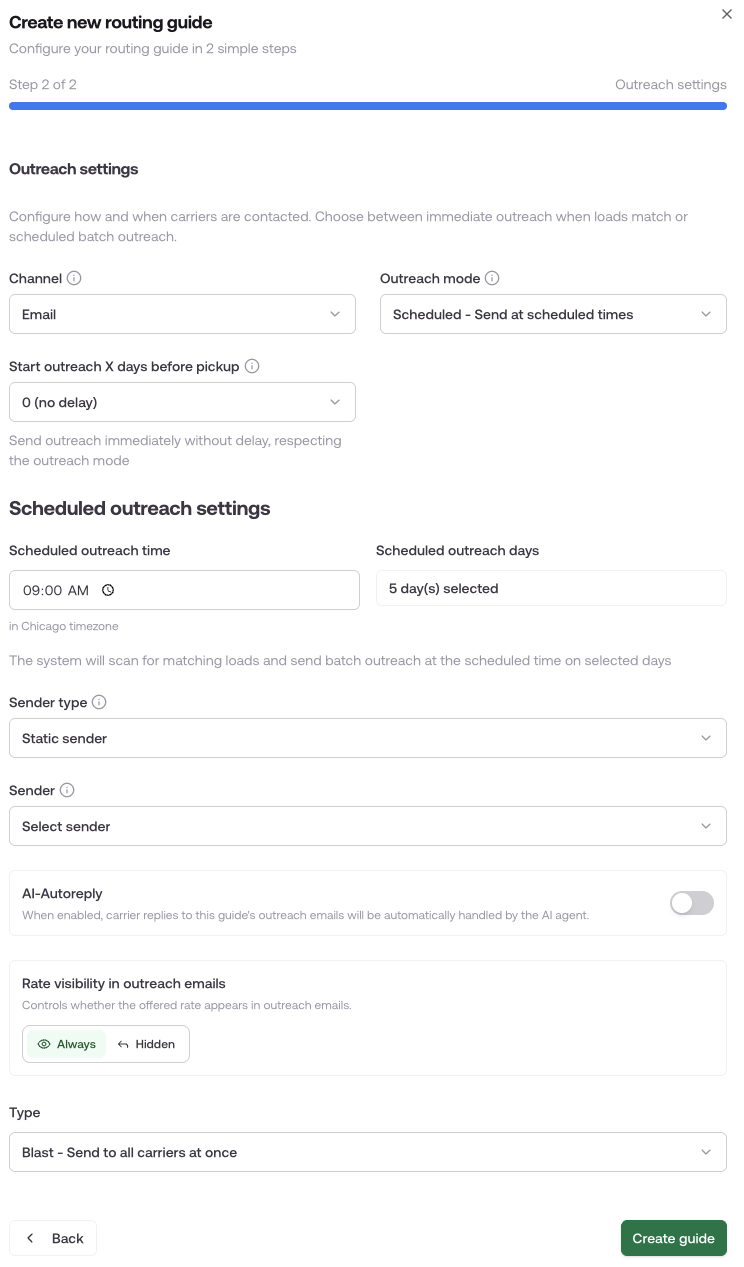
Once you select Next to continue to the next part of guide setup, select email for carrier outreach.
Outreach Mode — Choose between Scheduled and Immediate
Start Outreach X Days Before Pickup — Avoid reaching out to carriers too far in advance. Carriers respond better when pickup is imminent.
Scheduled Outreach Time / Days — When Scheduled outreach is selected, we will batch matching loads and send outreach at the scheduled time on selected days.
Sender Type — Can be one sender or load-assigned user (with fallback).
AI Autoreply — If enabled, when a carrier responds to the load details, the AI agent will negotiate on your behalf.
Rate Visibility — You can hide the rate when emails are sent.
Type — You can choose between Blast and Waterfall.