Microsoft Teams Basic Set Up for Call Transfer Notifications
Last updated: February 9, 2026
Prerequisites
To complete these instructions you must have access to:
An admin account within your FleetWorks org.
An admin account within your Microsoft Teams tenant.
Step 1 of 4: FleetWorks app installation
Download the FleetWorks Team App ZIP file: FleetWorks App July 9th, 2025.zip.
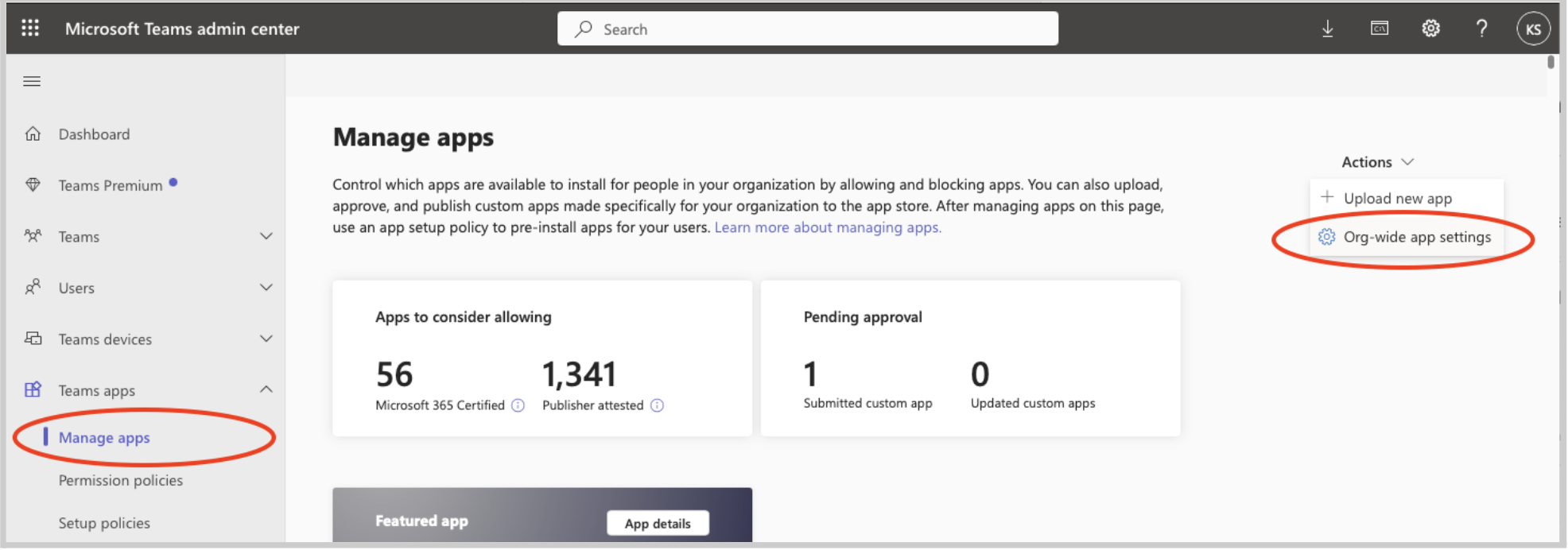
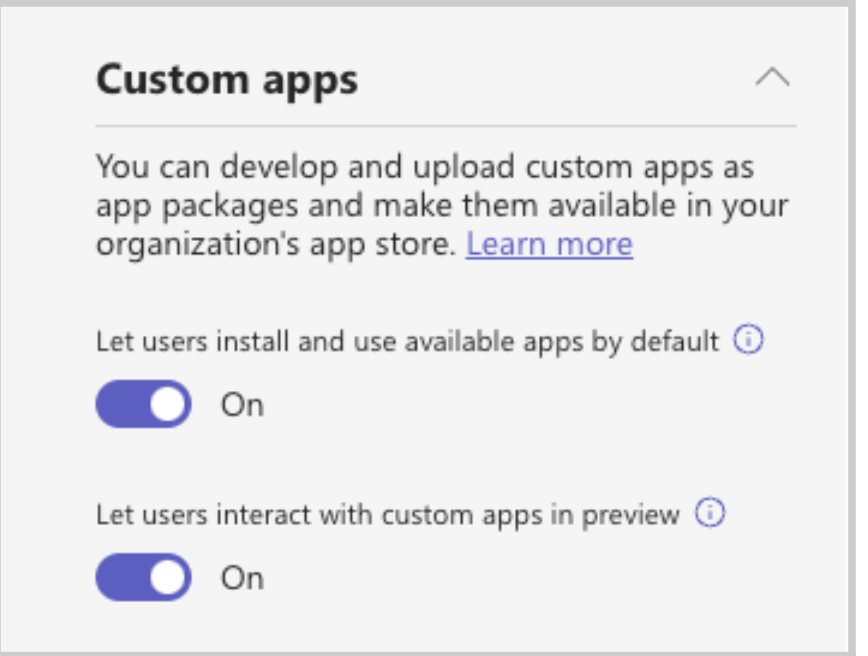
Visit the Microsoft Teams admin center, enter the “Manage apps” tab, and make sure that Custom apps are enabled in your Org-wide app settings.
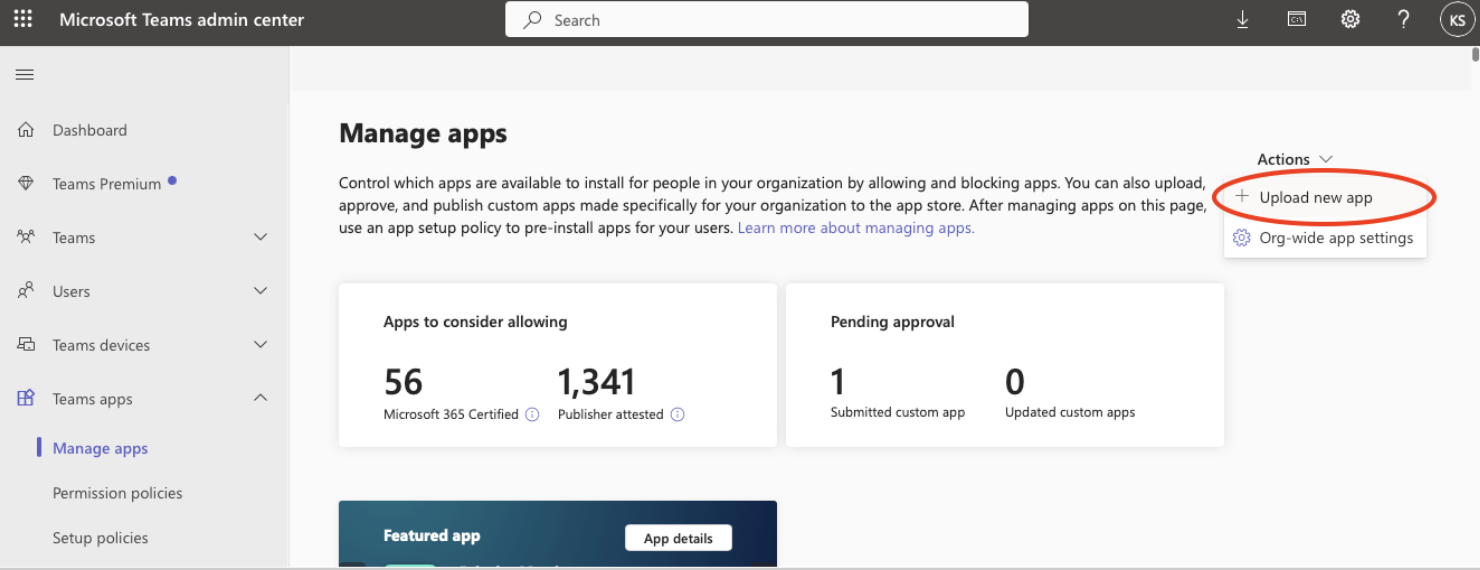
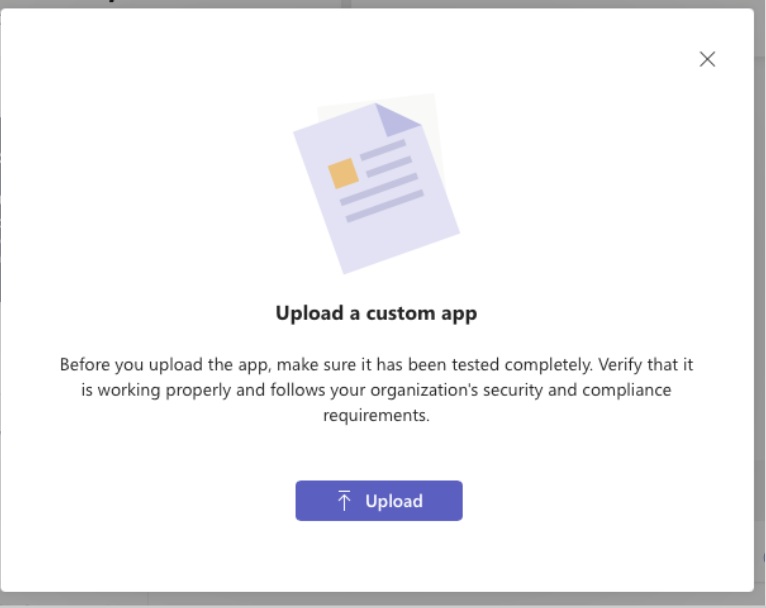
With custom apps enabled, click “Upload new app” and follow the instructions to upload the FleetWorks app ZIP file that you downloaded previously.
Note: You should upload the ZIP file directly — no need to unzip it.
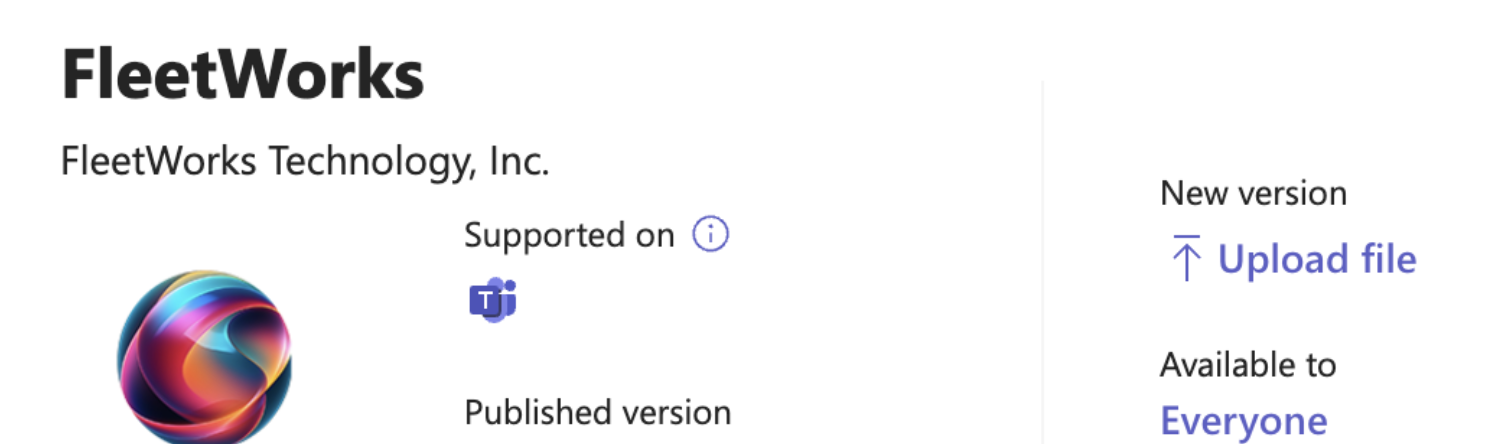
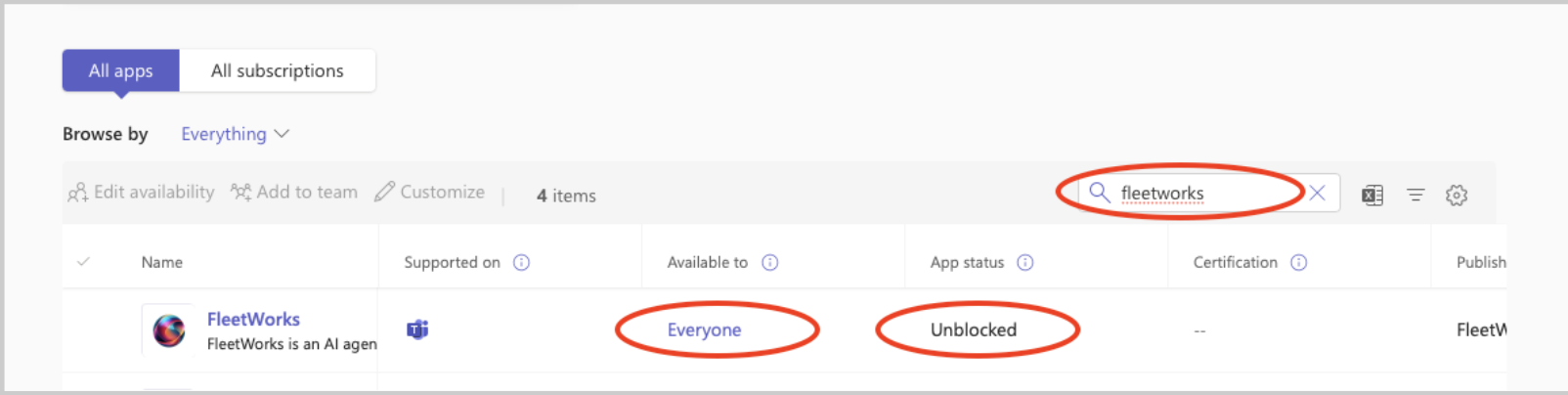
After uploading the app, you should be able to search and find the FleetWorks app under the “All apps” section of the “Manage apps” page. The apps should appear as available to Everyone, with app status Unblocked.
Step 2 of 4: OAuth connection
Log into FleetWorks as an admin of your FleetWorks organization.
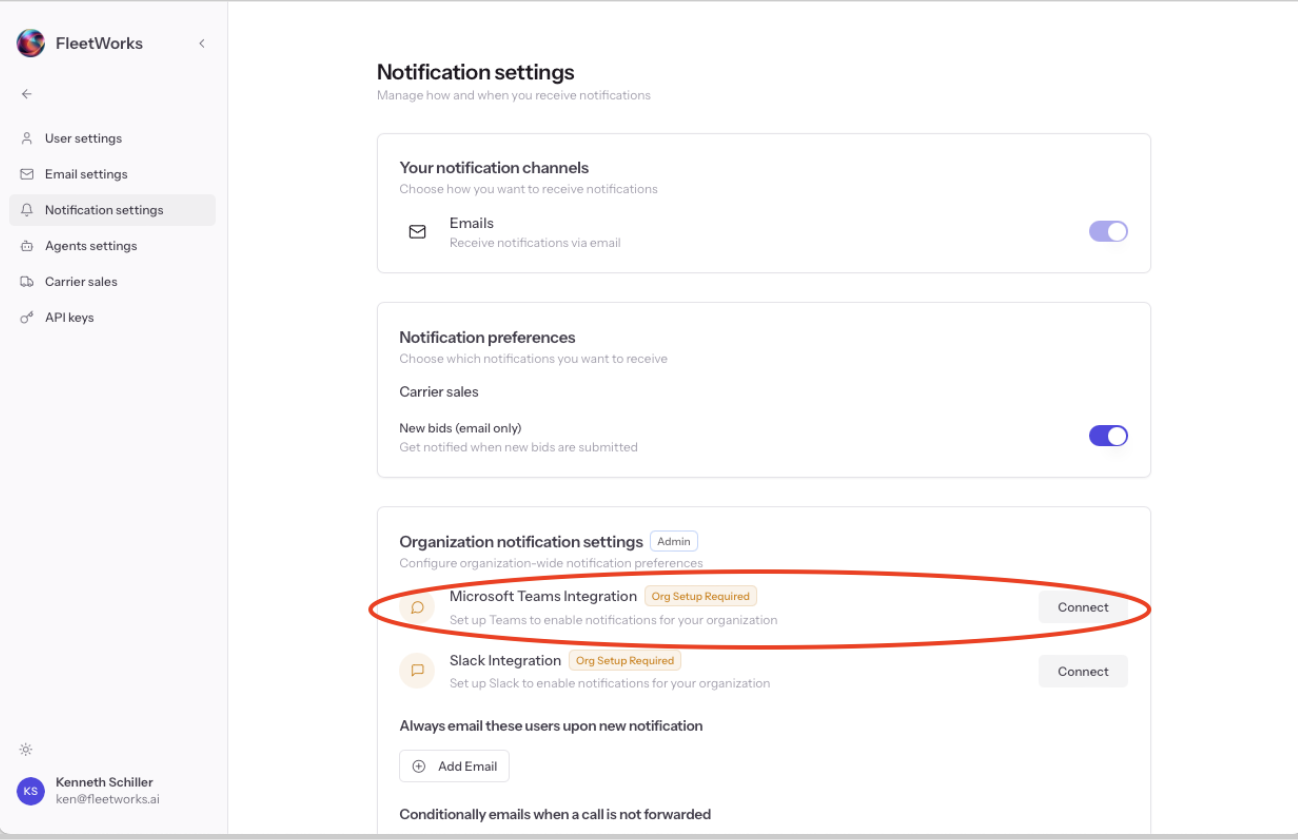
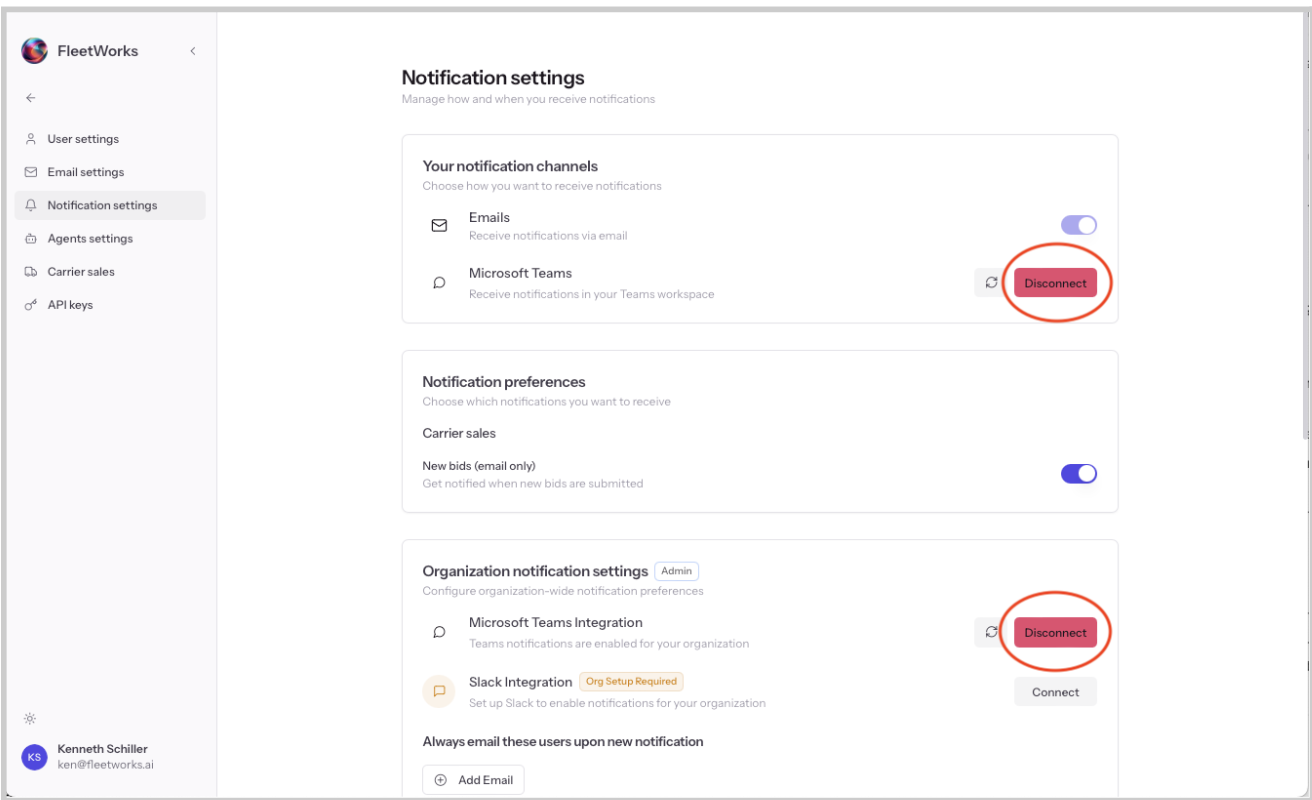
Org-level OAuth connection: Visit https://www.fleetworks.ai/settings/notifications, and under “Organization notification settings” find the “Connect” button for the Microsoft Teams Integration. Completing the org-level connection will enable Teams features for your organization.
Clicking “Connect” will initiate the OAuth flow. You will be prompted to log in or select a Microsoft Teams account, and then asked to provide OAuth permissions to the FleetWorks application.
When initiating the org-level connection, it is important that you connect with your Microsoft account that is an admin of the Microsoft tenant.
User-level OAuth connection: After the org-level connection succeeds, you (and other users in your FleetWorks org) will see a new option to enable Microsoft Teams notifications under the “Your notification channels” section of the “Notifications settings” page. Completing the user-level connection with enable notifications for your individual Microsoft Teams account.
When initiating the user-level connection, it is important that you connect with the same Microsoft account that you use day-to-day in the Teams app. This may be the same account used for the org-level connection, but for some admin users it may be a different account if you have separate admin and user accounts.
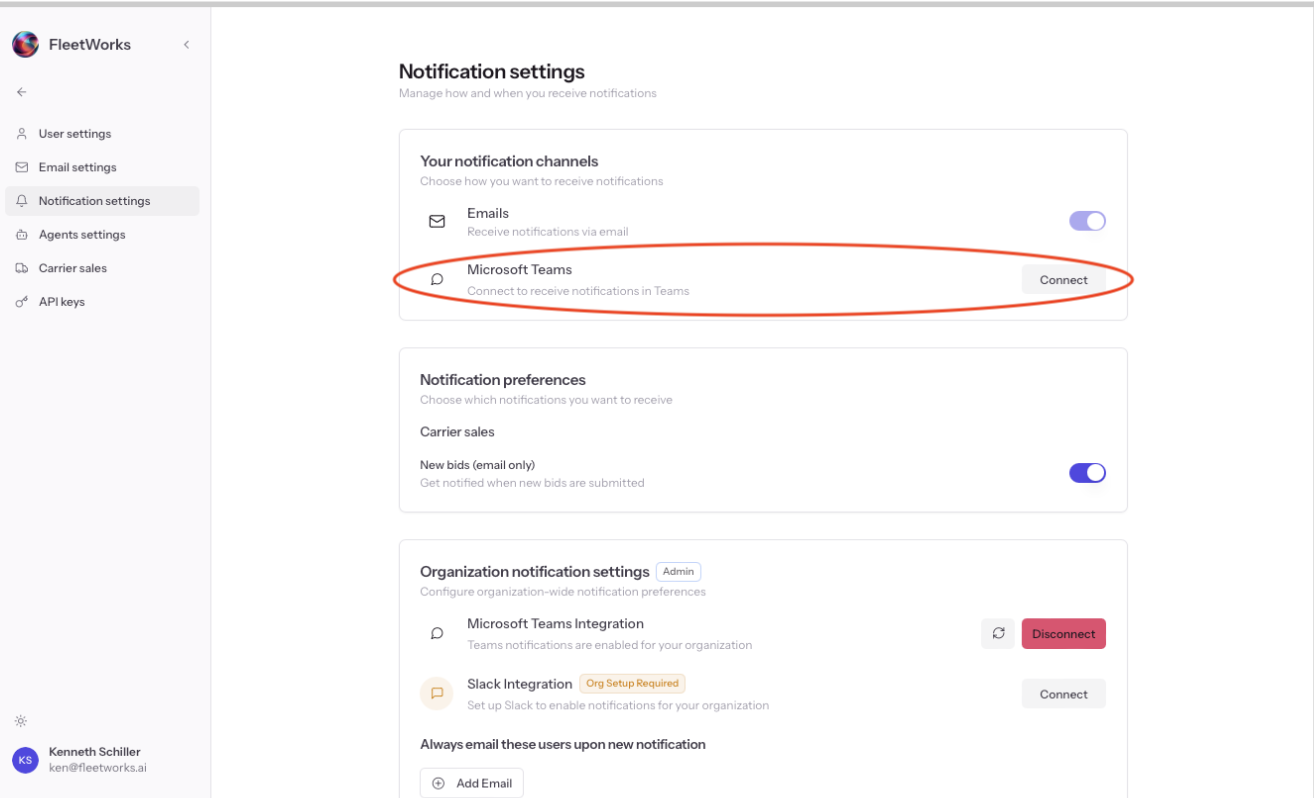
When successful, the settings page should show the “Disconnect” button under both “Your notification channels” and “Organization notification settings.”
Step 3 of 4: Team channel configuration
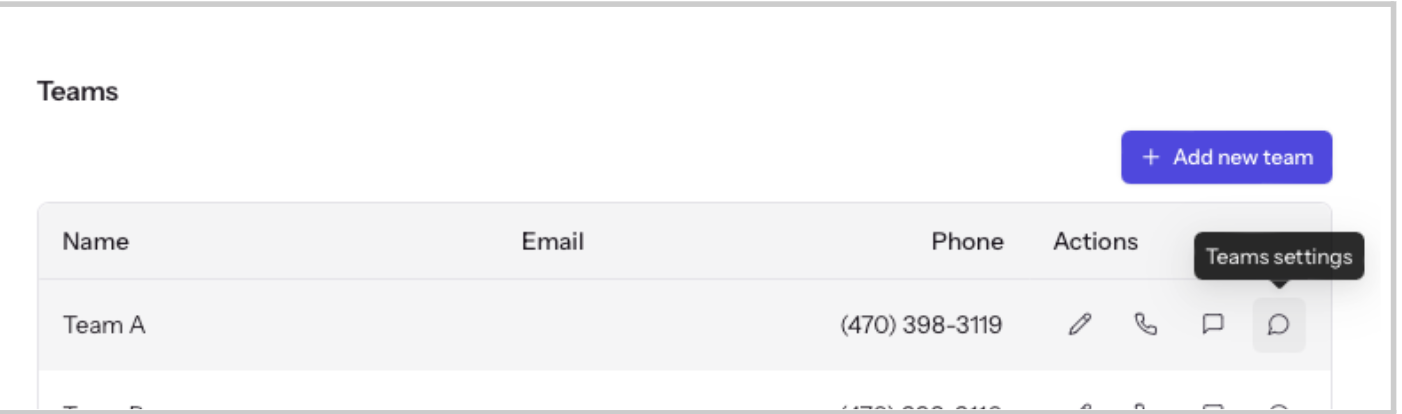
Create a notifications channel for your FleetWorks team: The next step is to configure the notifications channel for your FleetWorks team under the “Users and teams” page. Visit https://www.fleetworks.ai/users and either add a new team or select an existing team.
In the row for your selected team, select the “Teams setting” button.
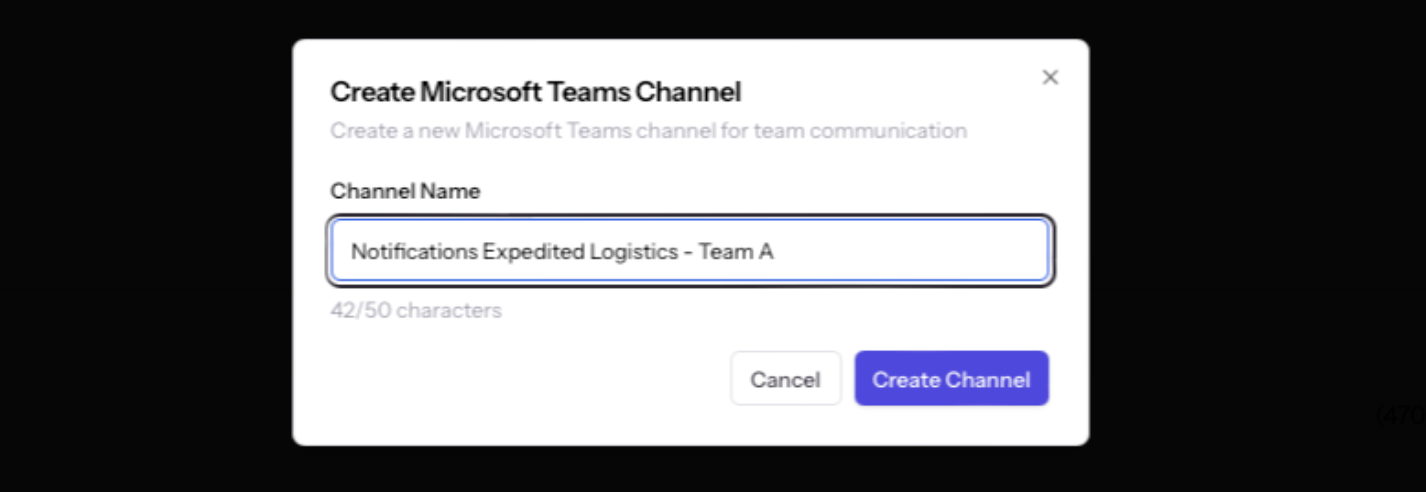
You will be prompted to choose a name for the Microsoft Teams channel to be created, or you can keep the provided default name. Click “Create Channel.”
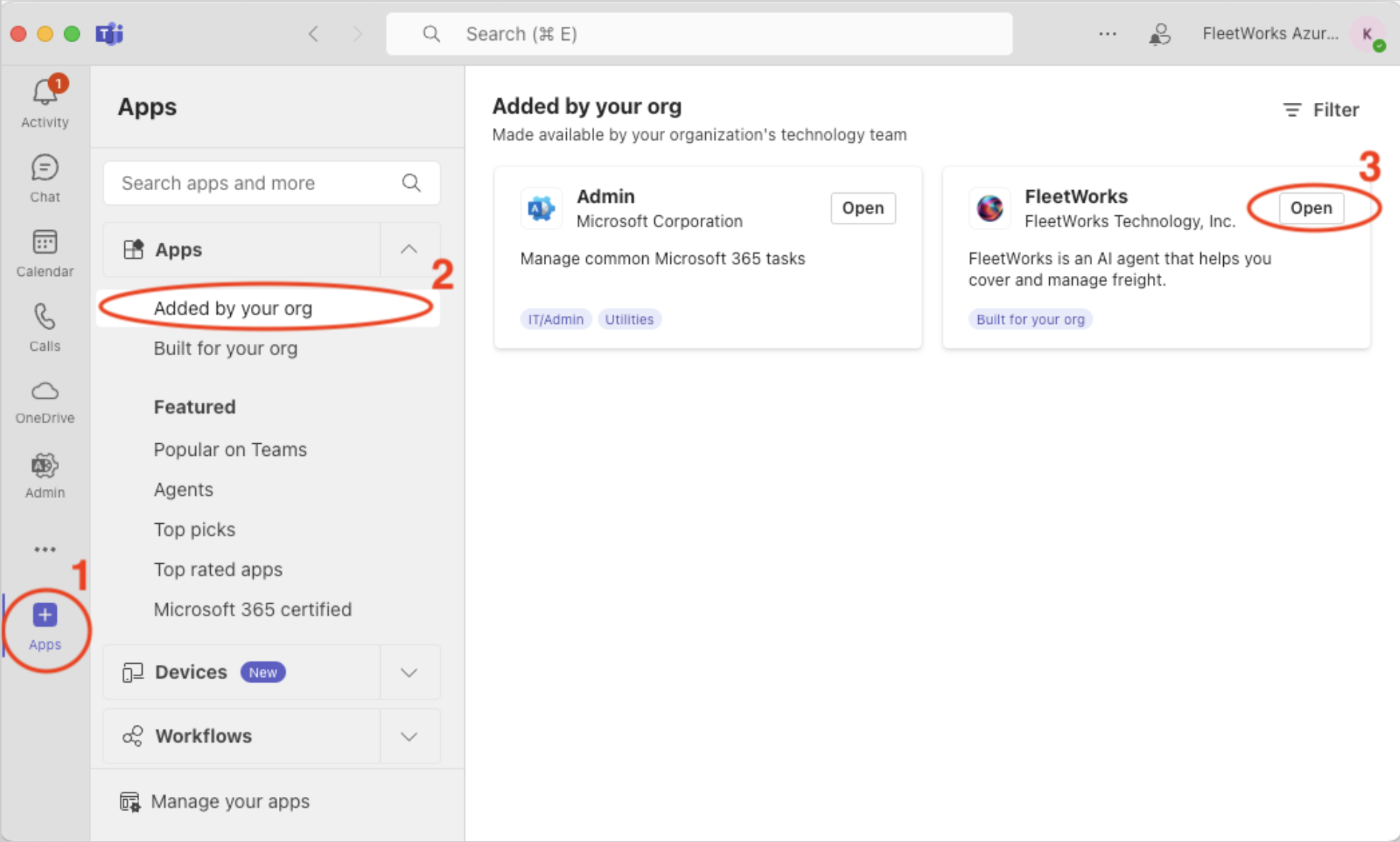
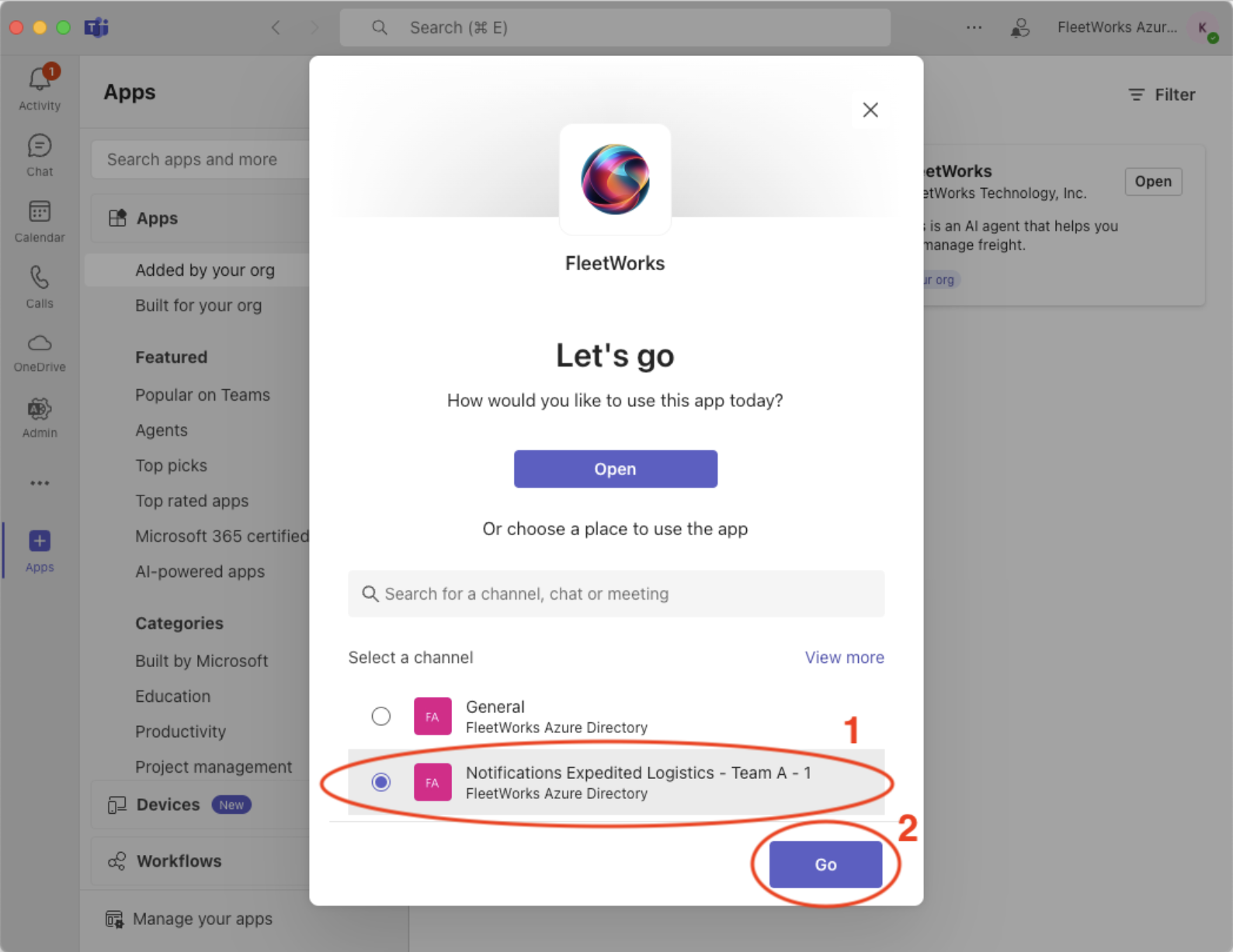
Give the FleetWorks app access to the channel: Within the Microsoft Teams application (NOT the admin center), return to the “Apps” tab and find the FleetWorks app. Click “Open.” You will be prompted to “choose a place to use the app.” Select the notification channel that was just created, and then click “Go.”
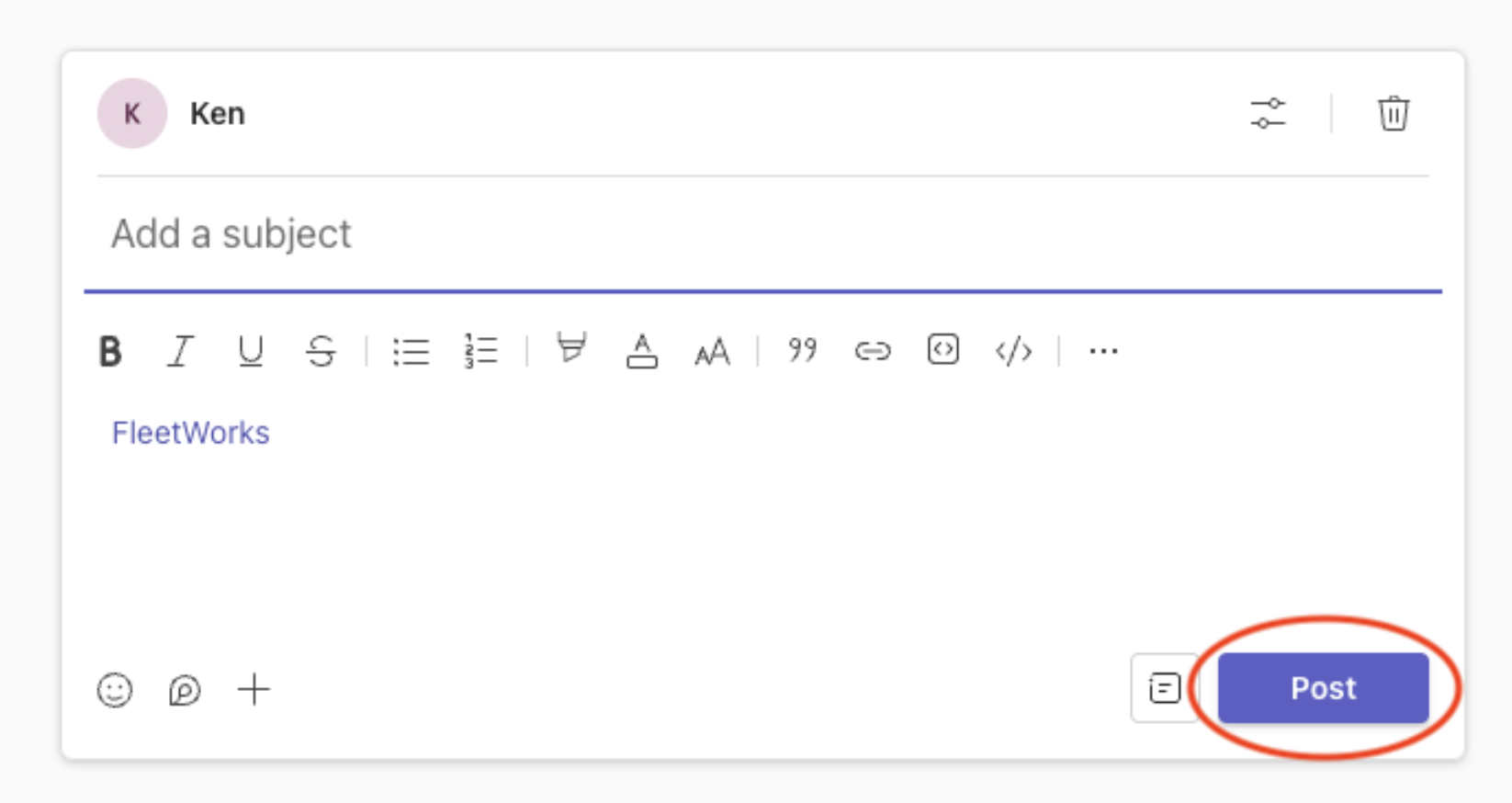
You will be taken to the selected channel, with a draft message containing a mention of the FleetWorks bot. Make sure to post this message to ensure that the bot is mentioned in and invited to access the channel.
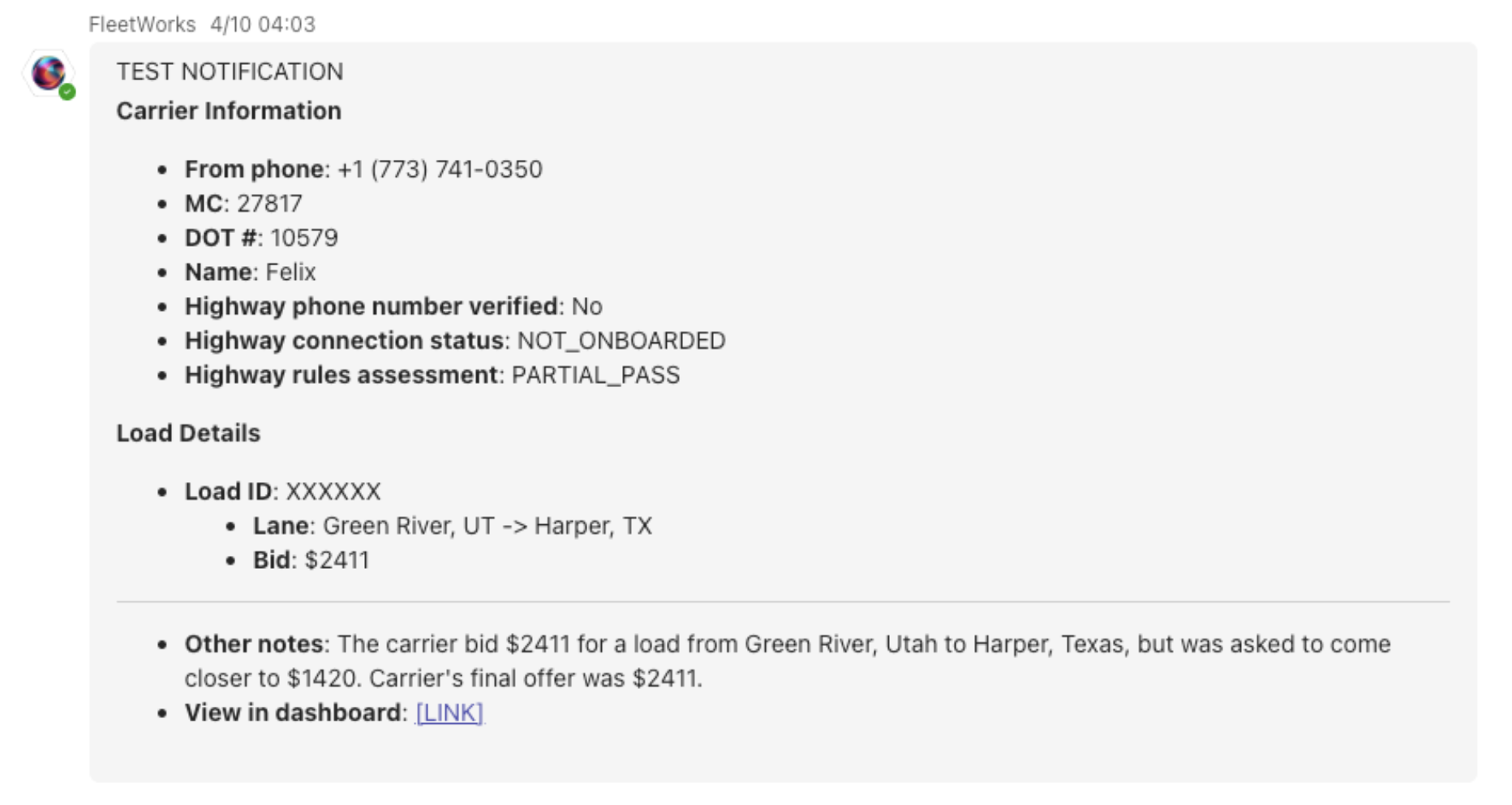
Success: At this point you should be all set to receive Teams notifications on behalf of the FleetWorks teams. When a call is transferred by the FleetWorks agent to the team phone number configured on the “Users and teams” page, you will receive a notification from the bot, detailing information about the phone call and any discussed loads.
Step 4: Updating the app
Visit the Microsoft Teams admin center, enter the “Manage apps” tab, and make sure that Custom apps are enabled in your Org-wide app settings.
If you previously installed the app, you should be able to search and find the FleetWorks app under the “All apps” section of the “Manage apps” page. The apps should appear as available to Everyone, with app status Unblocked. Click on it.
You should see the button to upload a new version. Click on it and upload the new zip.